
How to set a wholesale minimum order quantity (MOQ) on Shopify
Updated July 2026 · 6 minute read · Applies to every Shopify plan
If your wholesale buyers are set up as B2B company accounts, Shopify has a native tool for this. Inside a B2B catalog you can set a minimum, maximum, and increment purchase quantity per product, on every paid plan, and it is enforced by the cart itself, separate from any stepper your theme shows. Shop Pay, Apple Pay, Google Pay, and Amazon Pay are not offered on B2B checkout at all, so the express-wallet leak that breaks most storefront minimum tricks does not apply here. The catch: it only reaches buyers you have set up as formal B2B companies, and it does not reach draft orders or point-of-sale orders your staff key in by hand.
The two places an MOQ can live
| Where | Cost | Who it reaches | What the buyer sees | Verdict |
|---|---|---|---|---|
| Quantity rules inside a B2B catalog | Free, native, every paid plan | B2B company accounts only | The cart rejects the quantity before checkout loads | Holds, for B2B |
| Checkout validation | Your own Function, or an app | Every buyer on the storefront | Your message, inside checkout | Holds, for everyone |
Which tool you need depends on how your wholesale buyers check out
"Wholesale MOQ" means different things depending on your setup. If your wholesale customers are onboarded as B2B companies in Shopify (they log in, see wholesale pricing, maybe pay on terms), the native quantity rule inside your B2B catalog is built for exactly this and needs no app. If instead you sell to everyone through the same storefront and just want a minimum quantity on certain products, a certain collection, or the whole cart, regardless of who is buying, that is a different job and the native B2B tool will not reach it. Read the option that matches your setup.
Option 1: quantity rules inside a B2B catalog (native, every plan)
Company accounts, catalogs, and quantity rules used to require Shopify Plus. As of April 2, 2026, the core B2B feature set, including quantity rules, is available on Basic, Grow, and Advanced too, at no extra cost. Plus still gets unlimited catalogs and per-company catalog assignment. Basic, Grow, and Advanced are capped at 3 active catalogs across your B2B markets.
To set a minimum order quantity for a product:
- In Shopify admin, go to
Markets > Catalogsand open the catalog assigned to your wholesale companies. - In Products and pricing, click Manage > Manage products and pricing.
- Hover over a product to set the rule for all its variants, or open the product's variant list to set it per variant.
- In the Quantity rules column, click + Add.
- Enter a Minimum (the lowest quantity a buyer can order), and optionally a Maximum and an Increment (orders must land on a multiple of this number, useful for case packs: an increment of 12 means a buyer can order 12, 24, 36, and so on).
- Click Done, then Save.
This is not cosmetic. The rule lives on the cart itself. If a buyer's app or storefront tries to add a quantity below your minimum, or one that is not a multiple of your increment, the cart rejects it before checkout ever loads. That is a different guarantee than the shipping-rate and cart-button tricks people use for a plain minimum order amount, which only work if your theme cooperates.
One thing you still own: your theme has to display the rule (a quantity stepper, a "minimum 24" note) so buyers are not surprised by an error. Shopify publishes the Liquid code for this, and current Online Store 2.0 themes usually include it, but an older or heavily customized theme may need a developer to add it.
What this native option does not cover
- It only applies to buyers assigned to that catalog, meaning customers you have onboarded as B2B companies. A regular customer, even one you privately think of as "wholesale," is not covered unless they are set up as a company.
- Draft orders your staff build in admin for phone or email orders, and orders rung up on Shopify POS, do not go through the online cart, so a catalog's quantity rule does not stop them. Whoever builds those orders has to know your minimum and honor it themselves.
- On Basic, Grow, and Advanced you get 3 active catalogs total. If you need more than 3 distinct wholesale quantity or pricing tiers, that requires Plus.
Option 2: a minimum that applies beyond formal B2B accounts
If you want a quantity minimum on the regular storefront, for a product, a collection, or the whole cart, without setting every wholesale buyer up as a B2B company, the B2B catalog tool is the wrong shape for the job.
Shopify does have a native layer for custom rules like this: checkout validation, built on Shopify Functions. A validation rule runs on Shopify's servers on every path into checkout, cart page, direct checkout links, and express wallets included, so there is nothing to skip. There is no settings screen for it, though. You either write a Function yourself (Shopify CLI can scaffold one with shopify app generate extension --template cart_checkout_validation), or you install an app that manages the rule for you.
This is the part our app does
Mastiff Order Limits
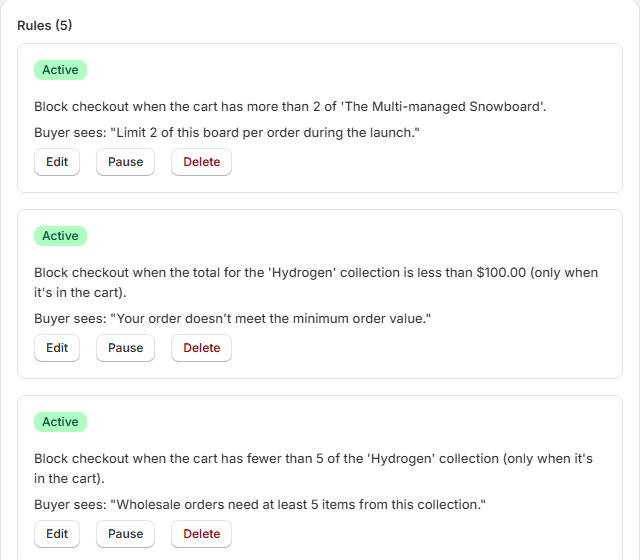
Order rules enforced at checkout: minimum and maximum order value, minimum and maximum quantity, and sell in multiples for case-pack MOQs, scoped to a product, variant, collection, or the whole cart, all through Shopify's own checkout validation, express wallets included. You set the rule in plain English and test it against any cart in the built-in simulator. What the simulator shows is what checkout enforces. One rule is free forever, which is enough for a single MOQ.
Known limits, whatever you use
- Point of sale (in-person) orders and draft orders you create in admin do not pass through online checkout, so no online quantity rule, ours included, applies to them.
- A quantity rule is checked when items are added to the cart and again at checkout, not before. A shopper can still browse and build a cart below your minimum. They just cannot complete it that way.
Which should you use?
If your wholesale buyers are already, or can be, set up as B2B companies, use the native catalog quantity rule. It is free, it works on every plan now, and it is enforced by the cart itself. If your minimum needs to apply to buyers who are not formal B2B accounts, or to your whole storefront regardless of who is buying, you need checkout validation through your own Function or an app like ours.