
How to limit quantity per order on Shopify
Updated July 2026 · 6 minute read · Applies to every Shopify plan
Shopify has two native quantity settings, and neither one is quite what most stores need. The add-to-cart limit is store-wide: one number, the same cap on every product. B2B quantity rules can be set per product, but only apply to B2B (wholesale) customers buying through a catalog, not regular retail checkout. If you want one specific product capped at, say, 2 per order for every customer, Shopify does not expose a setting for that. It has to be built with checkout validation, through a Function you write or an app that manages one for you.
The four places a quantity cap can live
| Where | Cost | Blocks Shop Pay / Apple Pay | What it caps | Verdict |
|---|---|---|---|---|
| Add-to-cart limit | Free, native | Yes | One number for every product in the store | Too blunt for one product |
| B2B quantity rules on a catalog | Free, native | Yes | Per product, B2B customers only | Wrong audience for retail |
| Theme edit on the product or cart page | Free | No | Only shoppers who use your cart page | Skippable |
| Checkout validation | Your own Function, or an app | Yes, every path | Per product, every customer | Holds |
Why "quantity limit" means different things on Shopify
If you landed here because a customer bought 40 of something meant to be capped at 2, the fix depends on which kind of limit you are missing. Shopify ships two different native quantity settings, and both are easy to reach for the wrong problem. Check which one applies before you build anything.
Option 1: the add-to-cart limit (native, free, one number for the whole store)
Shopify added a store-wide setting for this in 2025. Go to Settings > Checkout > Advanced preferences > Add-to-cart limit, turn it on, and set a maximum quantity. It caps how many of each product variant a customer can add to their cart in one order. It is applied to all products, all customers, and all carts, with a short list of exceptions: point of sale carts, draft orders, products in B2B catalogs that have their own quantity rules, customers on a B2B profile, and any product with inventory tracking turned off or "continue selling when out of stock" turned on.
The catch is in the name: it is one limit, for the whole store. There is a single Limit field, and whatever number you enter applies to every product and variant you sell. If you want a 100-unit cap on most products but a 2-unit cap on one release item, this setting cannot do it alone. Raising or lowering it moves every product at once.
Shopify suggests a starting number based on your sales history (50 by default if you have under 250 orders), which reads more like an inventory-privacy guard than a merchandising rule. It is meant to stop shoppers from inferring your exact stock levels through cart behavior.
Option 2: B2B quantity rules (native, per product, wholesale only)
If the quantity problem is really a wholesale minimum or a case-pack multiple, Shopify has a per-product setting, but it only fires for B2B customers. In Shopify admin, go to Markets > Catalogs, open a catalog, and add quantity rules to a product or variant: a minimum, a maximum, an increment, or a combination. This is available on the Basic, Grow, and Advanced plans as well as Plus, not just Plus.
The limit is who it reaches. Quantity rules live on catalogs, and catalogs are assigned to B2B companies. A regular retail customer checking out through your normal storefront never sees them and is never restricted by them. If the shopper you are trying to cap buys through your ordinary product pages and cart, not a wholesale account, this setting does nothing for them.
Option 3: theme edits on the product or cart page (free, skippable)
The other common workaround is code: a max attribute on the quantity input, or a script on the cart page that blocks checkout above a number. It can work for shoppers who move through your cart page normally.
It does not work for accelerated checkout buttons. Shop Pay, Apple Pay, Google Pay, and PayPal buttons take a shopper straight from the product page to checkout, skipping the cart page and any code that lives on it. If a quantity limit is slipping through on express-wallet orders, this is usually why.
Option 4: enforce a per-product limit at checkout itself
For a per-product cap that works no matter which button a shopper clicks, Shopify's own answer is checkout validation, built on Shopify Functions. It runs on Shopify's servers as part of the checkout flow, for online store carts and custom storefront carts alike. It names express checkouts directly in its own documentation: Shop Pay, PayPal, Google Pay, and Apple Pay. There is nothing on a product or cart page to skip, because the check does not live there.
A store on any plan can use this through a public app that has a Function installed. Building your own custom Function is the part that needs Shopify Plus. Out of the box, though, Shopify does not give merchants a settings screen for it. You either write the Function yourself, or install an app that manages the rule for you.
This is the part our app does
Mastiff Order Limits
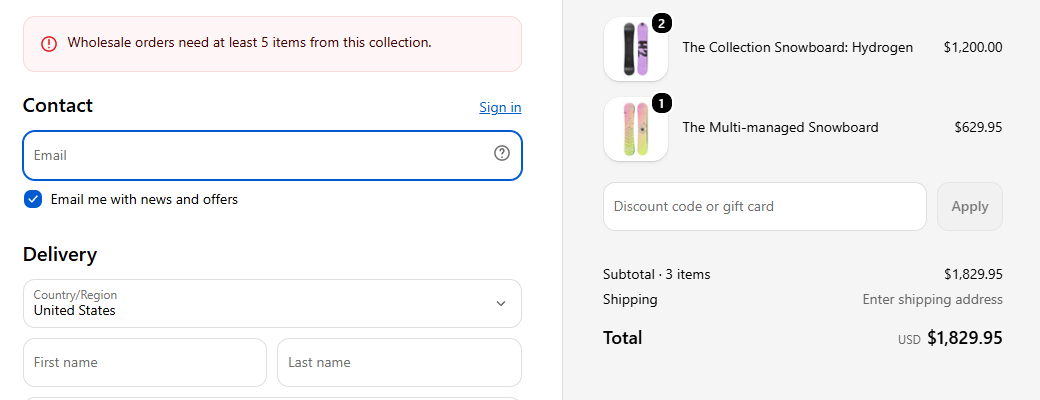
Order rules enforced at checkout: minimum and maximum order value, minimum and maximum quantity, and sell-in-multiples, all through Shopify's own checkout validation, express wallets included. Set a maximum quantity for one product and test it against any cart in the built-in simulator. What the simulator shows is what checkout enforces. One rule is free forever, which covers a single per-product quantity cap.
What none of this covers
- Point of sale (in-person) orders and draft orders you create in admin do not pass through online checkout, so none of these limits, native or app-based, apply to them.
- The add-to-cart limit and checkout validation both check the cart a shopper is building right now, not their order history. Neither one stops a customer from placing two separate orders that each stay under the cap.
- A limit enforced at checkout is checked when the shopper tries to pay, not the moment they click "add to cart". They can still build a cart above your limit. They just cannot complete it.
Which should you use?
If the real need is a wholesale minimum or case pack for B2B accounts, use quantity rules on a catalog. It is free, native, and already per product. If one store-wide cap on every product is close enough, and one number for everything is fine, the add-to-cart limit setting takes a couple of minutes to turn on. If a specific product needs a specific cap for every regular customer, on every checkout path including express wallets, that has to go through checkout validation, either your own Function or an app like ours.